
How to View Your Standing Orders
Overview
This guide explains how employees can view their existing standing orders within the Self-Service Portal of the Payroll Workspace. Standing orders are view-only in self-service, meaning employees can monitor their details but cannot create, edit, or delete them.
Standing orders usually represent fixed, recurring payroll-related deductions (such as loans or contributions). This feature allows employees to stay informed about their active commitments while ensuring payroll administrators retain control over setup and adjustments.
Prerequisites
- Access to the Payroll Workspace platform
- Standing orders must have been created by Payroll Administrators
When You Need This
- Checking your active standing orders and their enrollment details
- Reviewing deduction amounts and categories tied to your payroll
- Verifying the status of a standing order (active or inactive)
Step-by-Step Instructions
Step 1: Access the Standing Orders Page
- Log into your Organogram Payroll workspace at
payroll.organogram.app. - From the left-hand sidebar, click "Profile".
- Under Profile, select "Standing Orders".
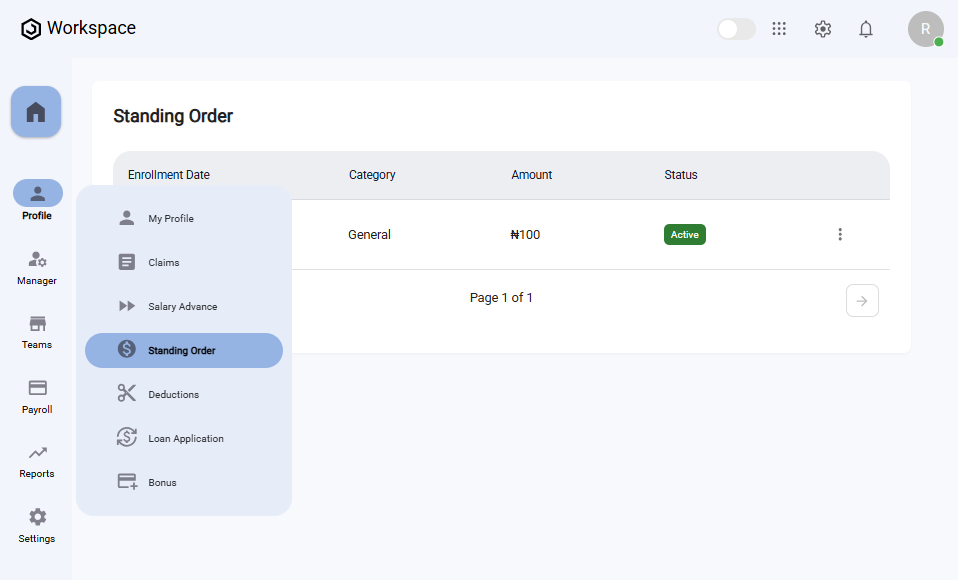
Step 2: View Standing Order Details
- On the Standing Orders page, you’ll see a table listing all your existing standing orders.
- Each row displays the following details:
- Enrollment Date
- Category
- Amount
- Status
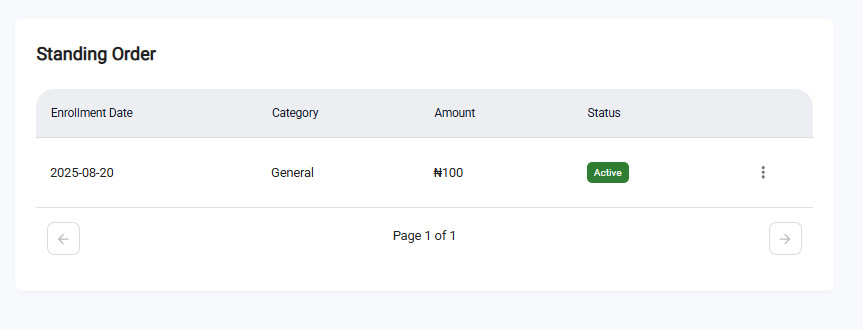
To view more details for a specific standing order:
- Locate the standing order in the Standing Orders Table.
- Click the three-dot menu icon (⋮) on the right-hand side of the row.
- Select "View".
- A full-screen details dialog will open, displaying both the basic details and additional Standing Order Category Data, which includes:
- Name
- Account
- Status
- Taxable (Yes/No)
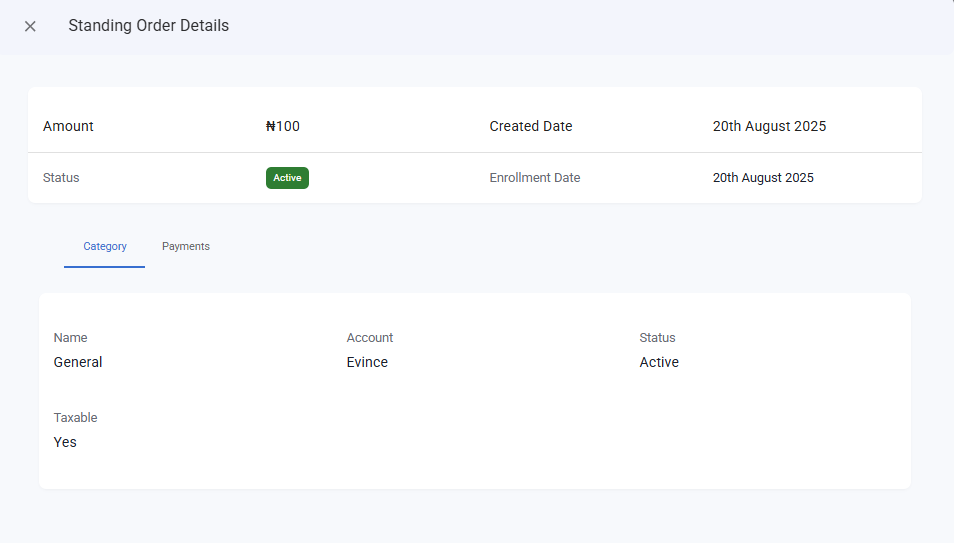
What You’ll See
- The Standing Orders Table will always display your current standing orders in read-only mode.
- You can only view details; creating, editing, or deleting standing orders is restricted to Payroll Administrators.
- The Status field lets you know if a standing order is currently active or inactive.