
How to Assign People Roles to a User in the Admin Application
Overview
This guide explains how to assign and remove roles for users in the HR (People) Application using the Organogram Workspace Admin platform. You can assign roles either through a targeted role search or the Add User to Role dialog — both methods are covered below.
Prerequisites
- Access to the Organogram Workspace Admin platform at
admin.organogram.app - The user you want to assign roles to must already exist in the system
- You must know which role(s) to assign
When You Need This
- Granting a user access to specific HR features or data within the People Application
- Updating a user's permissions when their responsibilities change
- Onboarding new employees and configuring their access level
- Ensuring compliance with role-based access control policies
Method 1: Assign a Role Using the Search Interface
Step 1: Navigate to the User Authorization Section
-
Log in to the Organogram Workspace Admin platform at
admin.organogram.app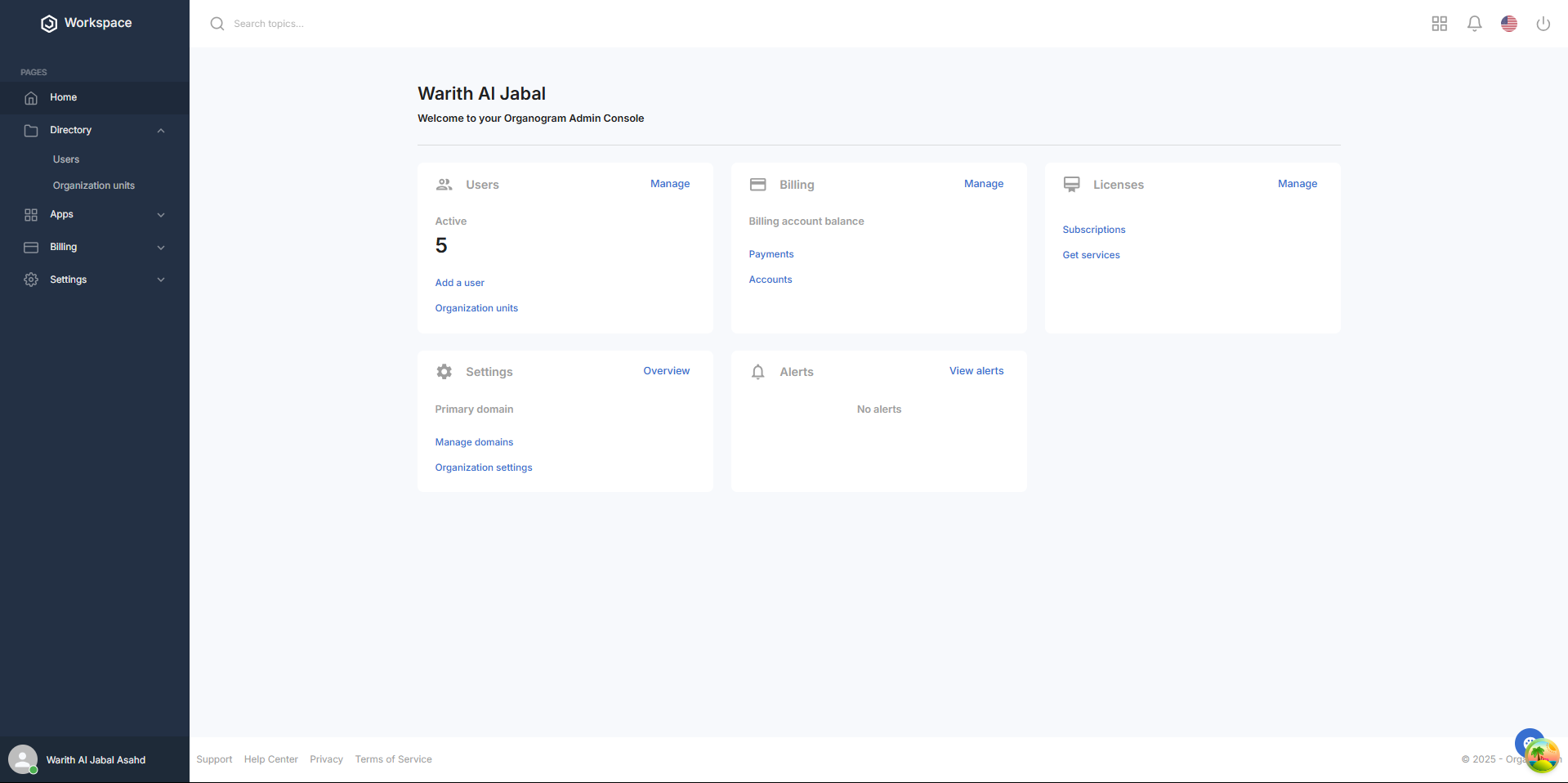
-
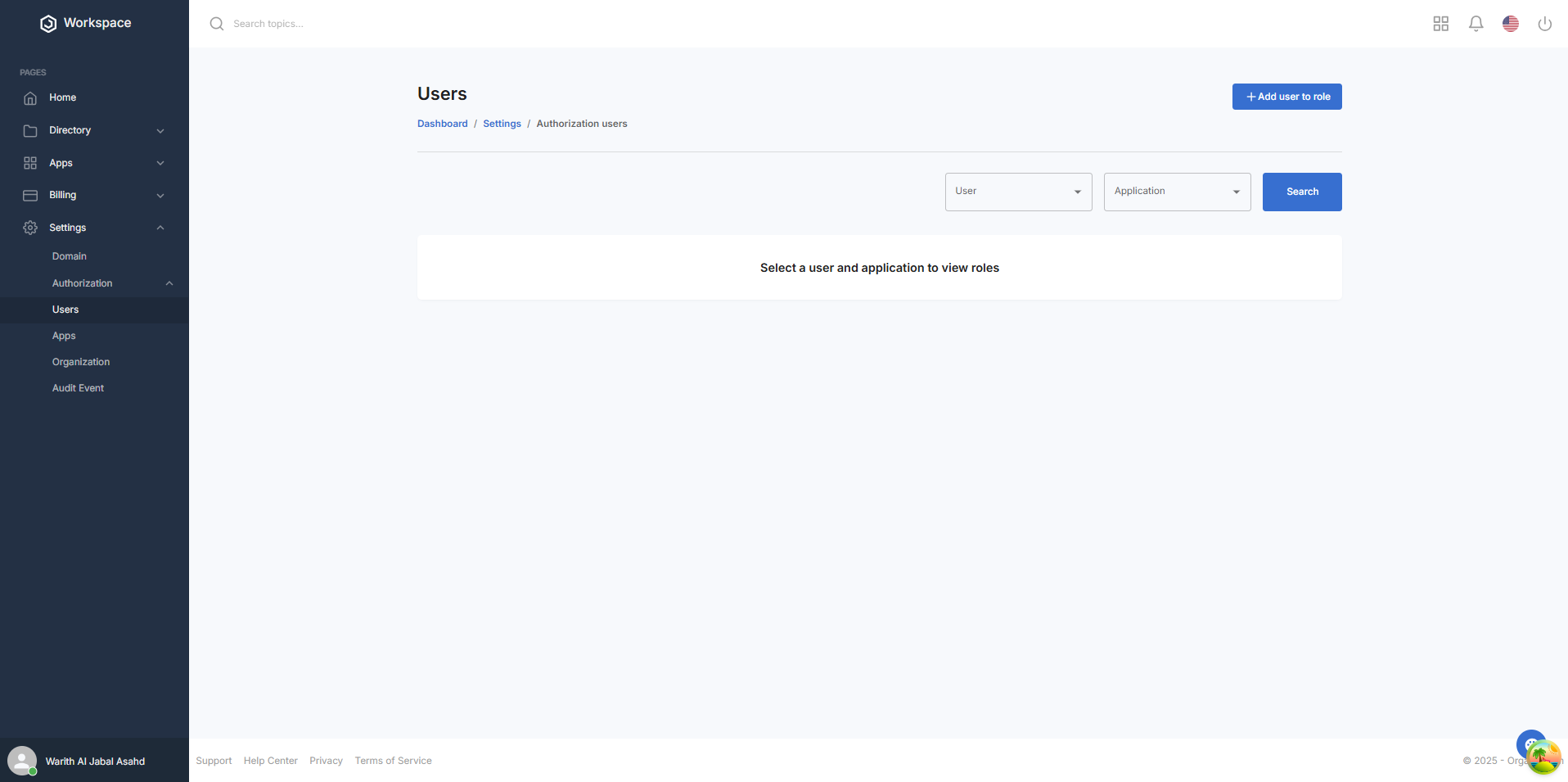
In the left sidebar, go to Settings > Authorization > Users
Step 2: Search for the User's Current Roles
-
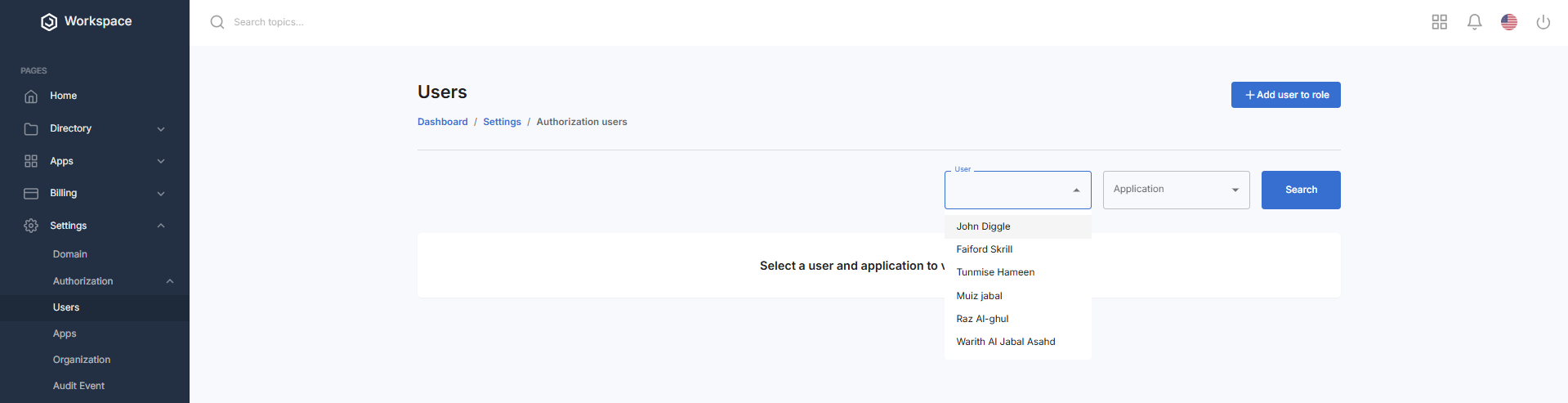
On the User Authorization page, open the User dropdown and select the user you want to manage
-
Open the Application dropdown and select People Application
Note: Both the User and Application fields are mandatory.Selecting an Application without selecting a User (or vice versa) will prevent the Search action from returning any roles.

-
Click the Search button
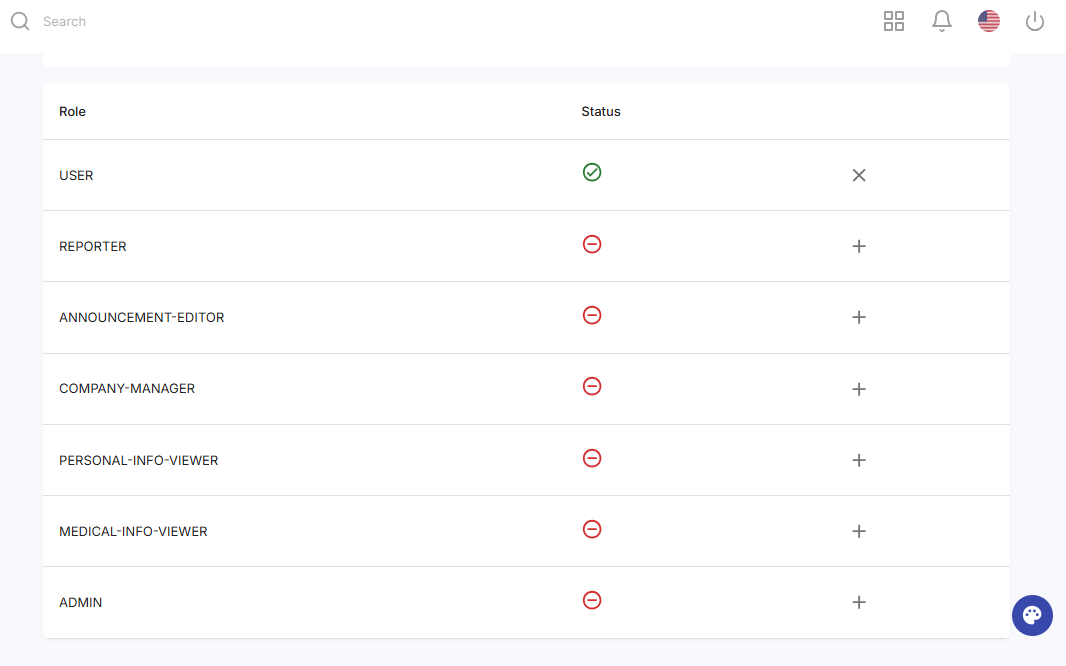
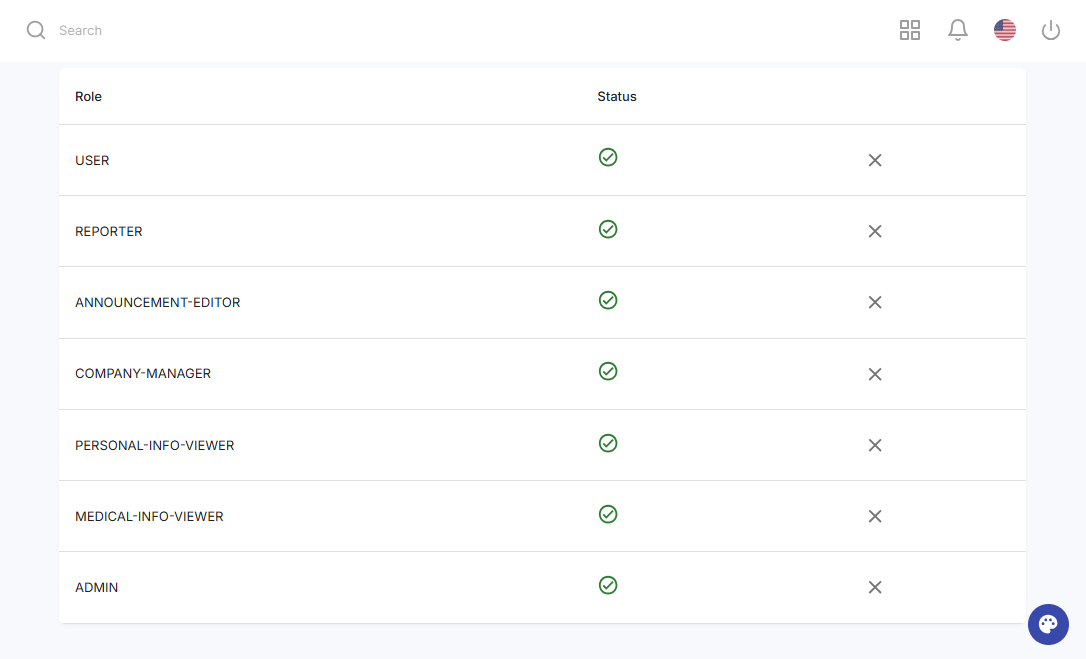
A table will appear listing all available roles for the People Application, along with each role's current status for the selected user:
- 🔴 Unassigned — a circled red hyphen indicates the role has not been assigned
- 🟢 Assigned — a circled green tick indicates the role is already active
Step 3: Assign a Role
-
Find the role you want to assign in the table
-
Click the circular add (+) button in that role's row
-
A confirmation dialog will appear asking: "Do you want to assign this user to this role?"

-
Click Yes to confirm
-
A toast notification will appear: "User assigned successfully"
-
The role's status indicator will update to a circled green tick ✅
Step 4: Remove a Role
-
In the same roles table, find the row for the role you want to unassign
-
Click the cancel (X) button in that row
-
A confirmation dialog will appear asking: "Do you want to remove this user from this role?"

-
Click Yes to confirm
-
A toast notification will appear: "User removed successfully"
-
The status indicator will revert to a circled red hyphen 🔴
Method 2: Assign a Role Using the "Add User to Role" Dialog
This method is useful when you want to assign one or more roles to a user in a single action.
Step 1: Open the Add User to Role Dialog
-
On the User Authorization page, click the + Add User to Role button in the top-right corner

-
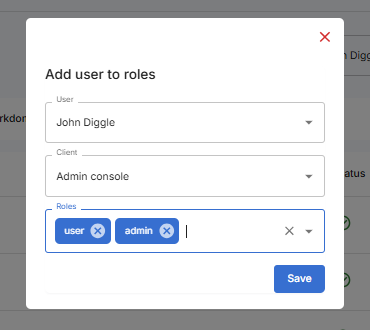
The Add User to Roles form will open
Step 2: Fill in the Form
Complete the following fields:
| Field | What to Select |
|---|---|
| User | Select the employee or user from the dropdown |
| Client | Select People Application |
| Role(s) | Select one or more roles from the dropdown (multiple selections are supported) |
Step 3: Save the Assignment
- Click Save
- A toast notification will appear: "Roles assigned successfully"
- The dialog will close automatically
Verifying the Assignment
To confirm the roles were assigned correctly:
-
Return to the User Authorization page
-
Use the User and Application dropdowns to search for the same user and the People Application
-
Click Search — the roles table will reflect the updated assignments, with assigned roles showing a green status indicator

Available Roles in the People Application
| Role | Description |
|---|---|
| USER | Standard user access with the People Application |
| REPORTER | Access to view and generate HR reports |
| ANNOUNCEMENT-EDITOR | Create, edit, and publish company announcements |
| COMPANY MANAGER | Company-level management access |
| PERSONAL-INFO VIEWER | View restricted personal employee information |
| MEDICAL-INFO VIEWER | View employee medical records and health information |
| ADMIN | FULL administrative access across all People Application modules |
Next Steps
After assigning roles, you may want to:
- Notify the user of their updated access and permissions
- Verify the user can access the relevant sections within the People Application
- Periodically review role assignments to ensure they remain accurate and compliant